Grid settings01
Best grid size for drawing
Start with 8×8 for a general reference, 10×10 to 14×14 for portraits, and 4×4 to 6×6 for your first exercises. Use the same row and column count on the drawing surface.
Read articleLocal canvas engine / no signup
Add a custom grid to any reference photo, start from a drawing preset, tune overlays and labels, then download a printable PNG, JPG, or PDF. No signup and no image upload.
Add grid to photoLoading grid controls…
Simple by design
Choose a JPG, PNG, or WEBP reference from your device.
Start from a preset, then tune rows, overlays, labels, and print size.
Check the export notes and download PNG, JPG, or PDF.
Not sure how many cells to use? Read the grid size chart or plan scale with the grid size calculator.
Artworks
A portrait benefits from smaller cells around facial landmarks. A broad botanical shape can stay readable with fewer lines. Architecture often needs more intersections for repeated edges.
See settings for each artwork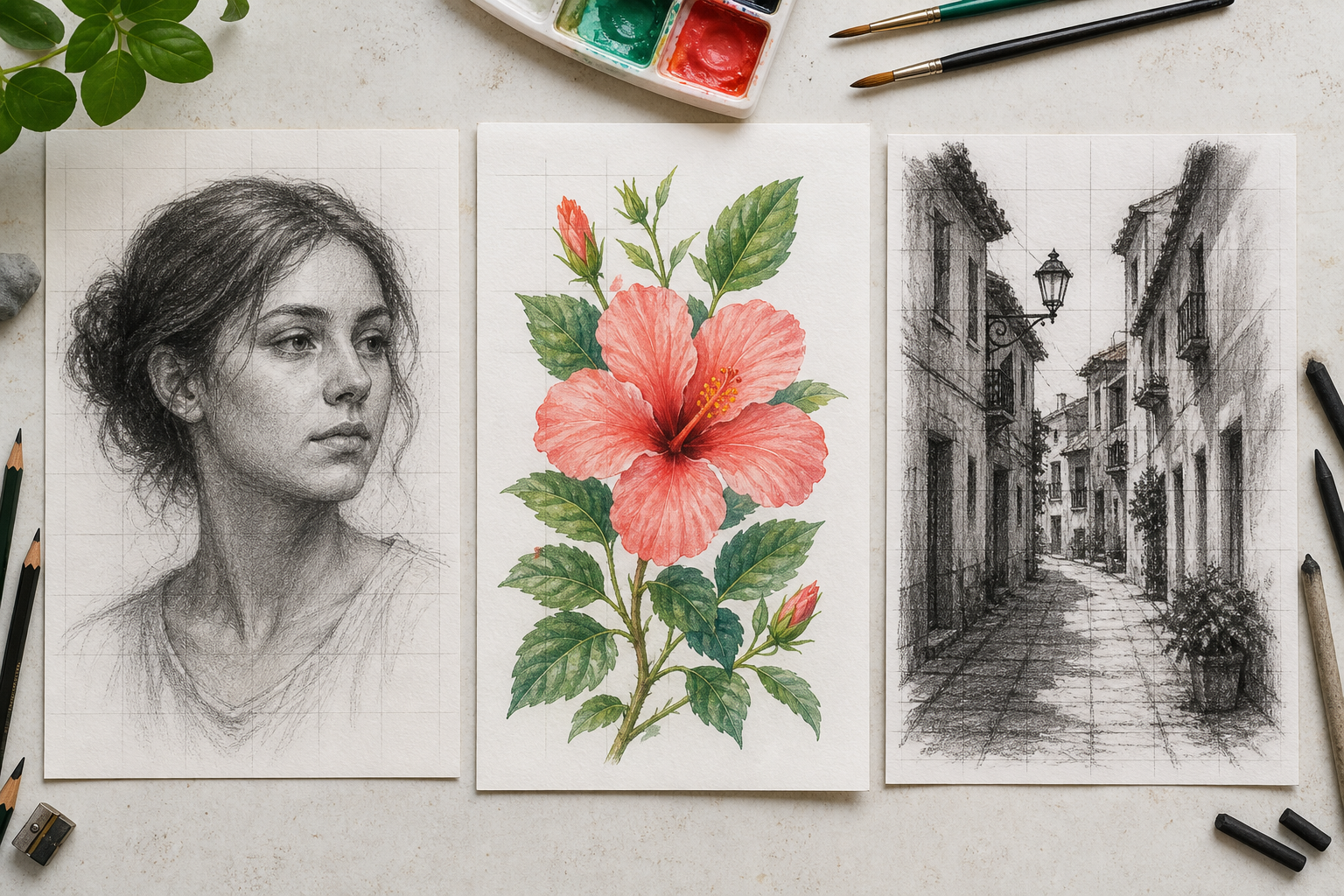
Blog
Start with 8×8 for a general reference, 10×10 to 14×14 for portraits, and 4×4 to 6×6 for your first exercises. Use the same row and column count on the drawing surface.
Read articleA projector is faster for large transfer work, but the grid method is cheaper, easier to teach, and better when you want to learn proportions instead of only copy an outline.
Read articleThe shift between thirds and phi sounds tiny on paper, but it changes where the eye rests in a finished frame.
Read articleBefore you upload
Yes. Upload a reference image, customize the drawing grid, and export standard PNG, JPG, or PDF files without creating an account.
No. GridMaker Pro processes your image locally in the browser. The reference is not sent to an image-processing server.
Start with 8 x 8 or 10 x 10 for most portraits and reference photos. Use fewer cells for simple subjects and more cells when precise detail matters.
Yes. Add the grid, select A4 or Letter paper size, then download a PDF. PNG and JPG exports are also available for other print workflows.
Yes. Turn off Include photo and download PNG to create a grid-only overlay for a digital art workflow.
Yes. The same customizable grid works for portrait studies, proportion transfer, mural planning, printable classroom worksheets, and beginner drawing practice.